Your brand, on stream, in minutes.
Pick a theme and StreamBlocks makes your Starting Soon, Be Right Back, Live and End screens in one matching look, then puts them in OBS for you. Add your own colours and logo on the Brand page whenever you like.
- Free during the beta
- Windows and Mac
- Works with OBS and Twitch
From a theme to a published overlay
Less time in design tools. More time live.
Everything matches
Pick one of nine themes and every starter overlay takes its colours, fonts and frame. Then make it yours on the Brand page: your name, colours and logos.
Straight into OBS
Click Publish and each overlay shows up in OBS as a scene of its own. Move a block or change the words later, publish again, and OBS has the new version.
Alive while you stream
Follower alerts, follower and sub goals and your chat update by themselves while you're live. Try your alerts first with Test alerts: nothing gets posted to Twitch.
Three steps. The app walks you through them.
-
Install
Open the installer from your invite email. On Windows it installs for your account without asking for an administrator, then opens by itself. On a Mac, drag StreamBlocks onto Applications, then open it.
Windows may warn you first. Here's why, and the two clicks past it.
-
Connect OBS and Twitch
In OBS, open Tools → WebSocket Server Settings and tick Enable WebSocket server. Then sign in with Twitch, on Twitch's own site.
-
Publish
Pick a theme, click Make 5 overlays, then Publish 5 overlays. Starting Soon, BRB, End Screen and two Live layouts appear in OBS, ready to use.
Same overlays. Nine looks.
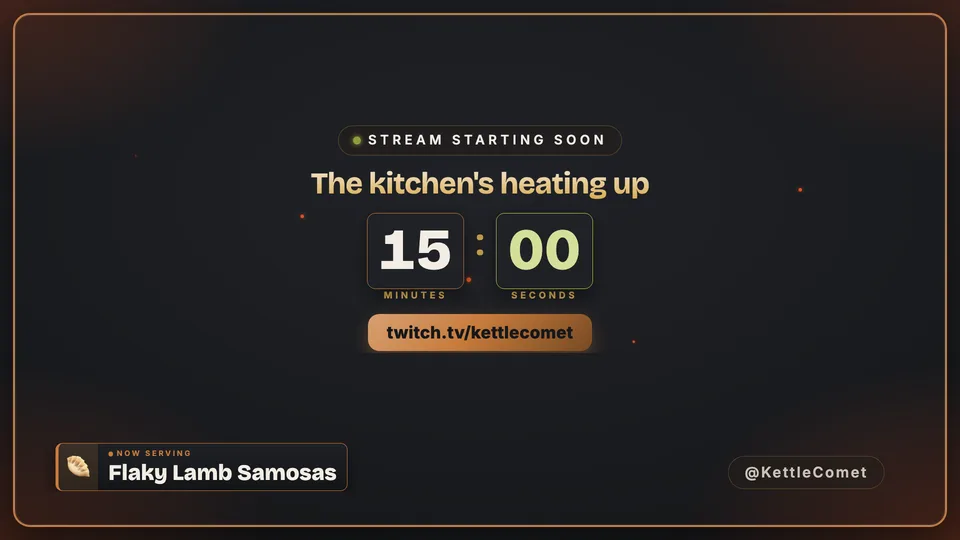
These pictures come straight from the app: the starter overlays it makes, in some of its nine themes. Switch theme whenever you like.
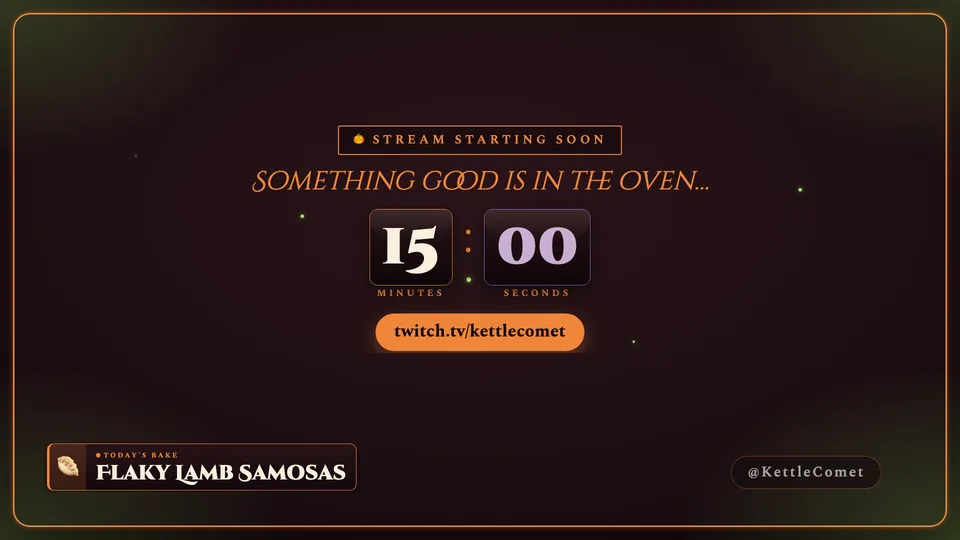
Starting Soon · Halloween 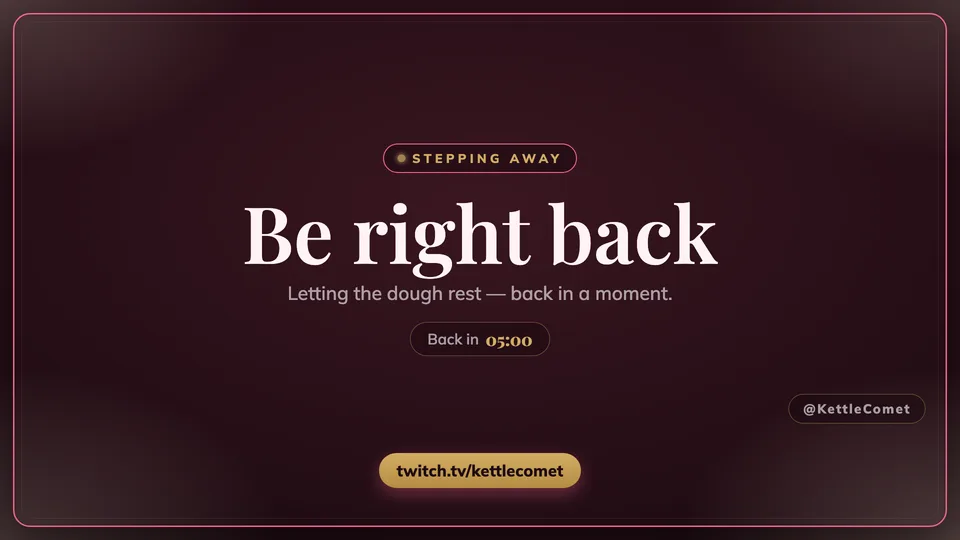
Be Right Back · Valentine's 
End Screen · New Year's 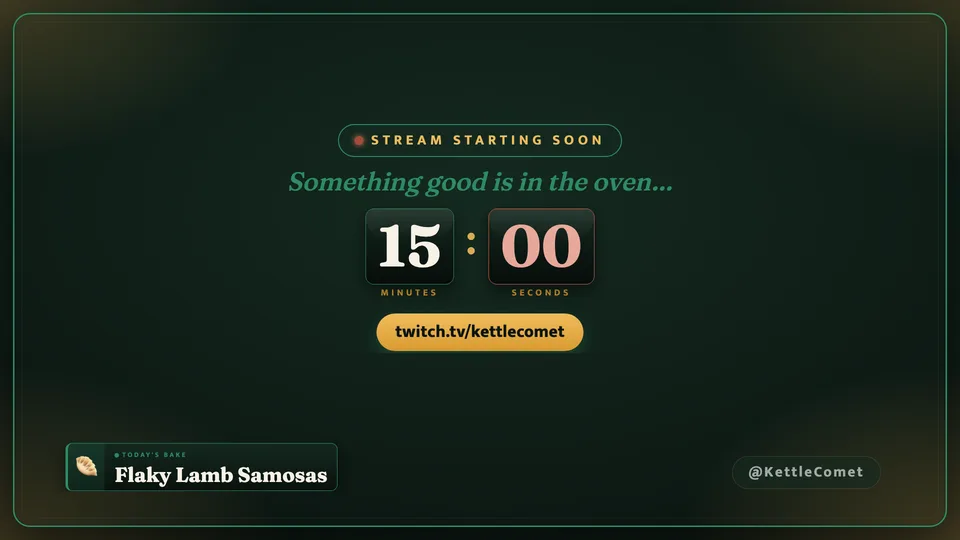
Starting Soon · Christmas 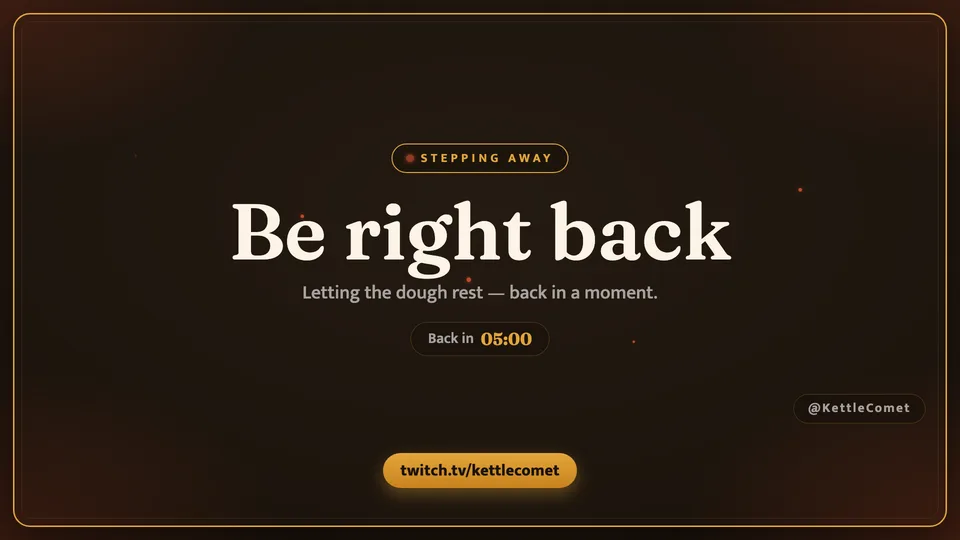
Be Right Back · Spice Market 
End Screen · St. Patrick's
Kettle Comet is a made-up demo channel. On your overlays your own Twitch name goes there, and you can change the words. The two Live layouts leave space for your camera and chat, so they aren't pictured here.
Windows and Mac.
Windows 10 or 11 (64-bit)
With OBS Studio 28 or newer.
macOS 12 or newer
On a Mac with an Apple chip (M1 or newer) or an Intel chip, with OBS Studio 28 or newer. The Mac version is new in this beta, so tell us if anything looks off.
Before you join
Is it free?
Yes. StreamBlocks is free during the beta.
Does it run on a Mac?
Yes. StreamBlocks runs on macOS 12 or newer, on a Mac with an Apple chip (M1 or newer) or an Intel chip, and on Windows 10 or 11 (64-bit). The Mac version is the newest, so tell us if anything looks off.
What do I need?
- A Windows 10 or 11 PC (64-bit), or a Mac on macOS 12 or newer.
- OBS Studio 28 or newer. StreamBlocks talks to OBS through the WebSocket server that's built into OBS. You switch it on once, in Tools → WebSocket Server Settings.
- A Twitch account. You sign in on Twitch's own site, so StreamBlocks never sees your Twitch password.
Where does my data go?
It stays on your computer. Your overlays, pictures, settings and Twitch sign-in are kept in your own user folder: %APPDATA%\StreamBlocks on Windows, ~/Library/Application Support/StreamBlocks on a Mac. Uninstalling the app leaves them there. StreamBlocks has no analytics, and there's no StreamBlocks server it reports to.
The app goes online for these:
- Twitch, to sign you in and to bring in your alerts, goals and chat.
- Google Fonts, the first time an overlay uses a font. The app keeps a copy after that.
- GitHub, to check our releases page for a new version.
- Only if you add them: a weather ticker (Open-Meteo, sent the city you type), news headlines (BBC), fun facts, or a web page block showing a page you choose.
Windows says "Windows protected your PC". What do I do?
Windows shows that box for apps it hasn't seen many people install yet. StreamBlocks is new, so Windows will probably show it for a while. It means Windows doesn't know the app yet, not that it found a virus.
To carry on:
- If your browser stops the download, choose Keep. In Edge it can sit under the … menu, and if Edge asks again, choose Keep anyway.
- Open the installer. When the "Windows protected your PC" box appears, click More info.
- Click Run anyway. StreamBlocks installs and opens.
Is it ready for a live show?
It's an early preview, so set it up and try it while you're not live first. Closing the StreamBlocks window doesn't quit it, so OBS keeps your overlays. To quit, use its icon: by the clock on Windows (it may hide under the ^ arrow), or in the menu bar at the top of the screen on a Mac.
Where do I get help?
Ask in the #beta channel on our Discord, or reply to any beta email. Tell us which screen you were on, what you expected and what happened.
How do I get in?
Join the beta list below. We're letting streamers in a few at a time, so each group gets help when they need it. When it's your turn, we'll email you the download link and a short guide.
Join the beta
Leave your email and we'll send you the download link for Windows or Mac when it's your turn.
Join the betaWe keep your email, whether you use Windows or Mac, and, if you give it, your Twitch name, only to run the beta and to tell you when StreamBlocks launches. We don't sell it or share it for ads. Reply to any beta email and we'll delete it. More in privacy and the beta terms.